Unitary Guide
Open the form

Unitary Guide.

Everything you need to sell, install and track a unitary unit.

VSL internal only

If the Guide does not answer your question, email your RM.

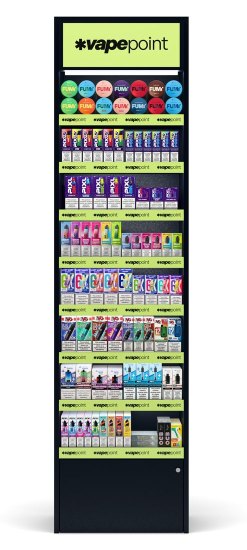
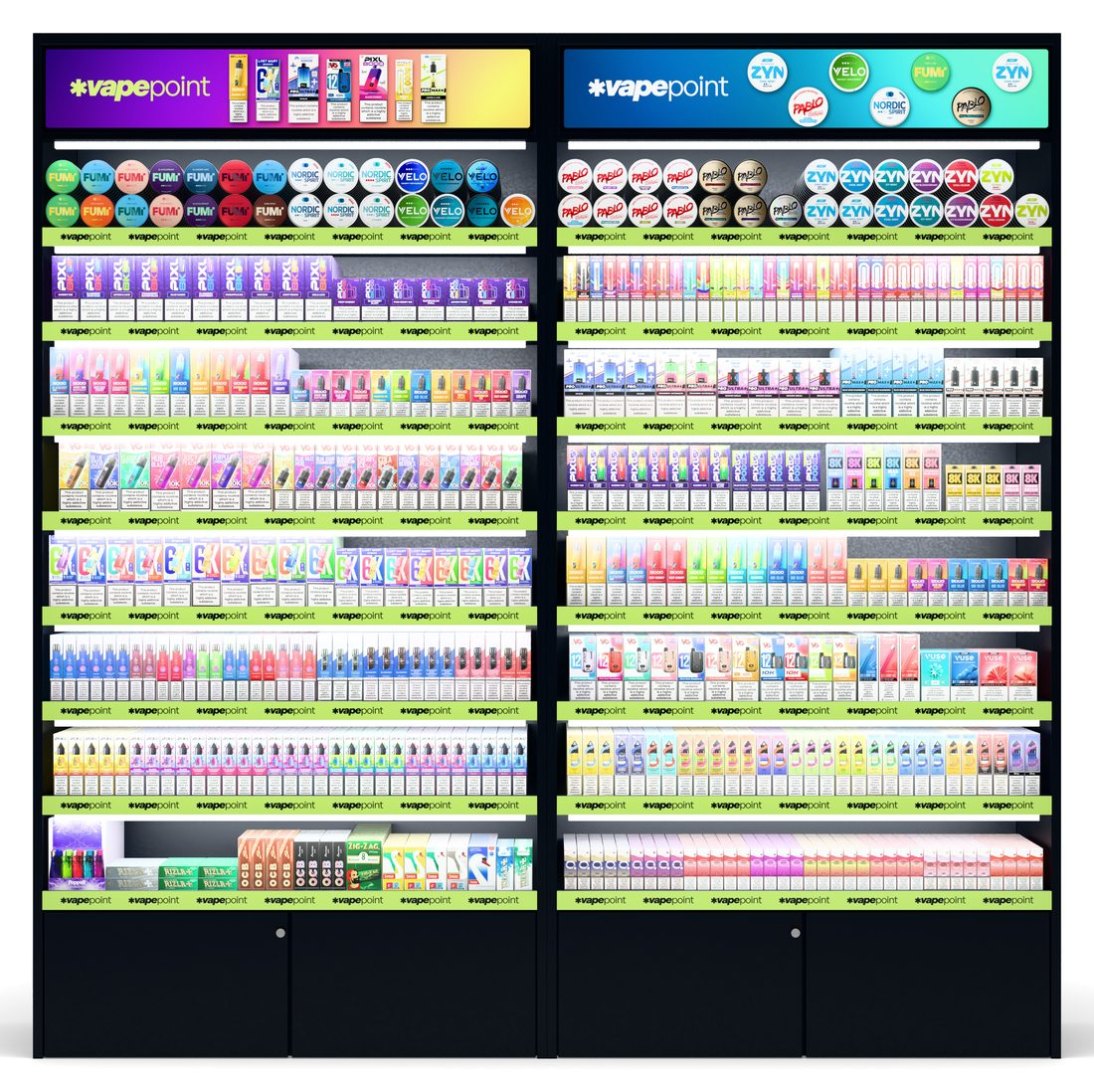
A filled 1M Back Wall

Sections

The five rules

  1. RULE 1: Only stores at the minimum
  2. RULE 2: No photo, no tracking
  3. RULE 3: Not on the email thread? It did not happen
  4. RULE 4: No form, no unit
  5. RULE 5: No calls to Shagun, Aurora or the supplier

VSL internal only
Not for retailers or anyone outside VSL. All figures are ex VAT.
If the Guide does not answer your question, email your RM.
Version 13 · Updated 23-11-2026

What a unitary unit is.

A unitary unit is VSL’s display unit, installed free in a store that commits to a minimum monthly spend with VSL Trade.

The five units

2M Back Wall: Front, without glass doors. Select to enlarge

Front, without glass doors

2M Back Wall

W 2000mm × H 2055mm × D 400mm
On the VSL Trade App: 2M Back Wall Display Solution
£4,000Minimum spend a month, ex VAT
£250Rent a month if below the minimum, plus VAT
See planogram
Features
  • Two 1M bays joined into one 2 metre run
  • Two digital LCD video screen headers, each on its own SIM connection (no shop wifi needed)
  • LED lighting on every shelf; adjustable shelves
  • Shelf dividers to keep every facing front and full
  • Two locking storage drawers for replenishment stock
  • Locking glass doors available on request
1M Back Wall: Front, without glass doors. Select to enlarge

Front, without glass doors

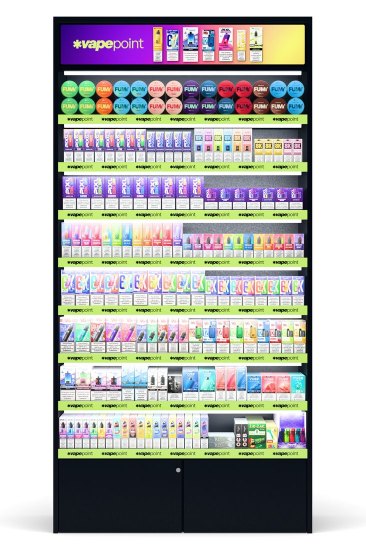
1M Back Wall

W 1000mm × H 2055mm × D 400mm
On the VSL Trade App: 1M Back Wall Display Solution
£2,000Minimum spend a month, ex VAT
£150Rent a month if below the minimum, plus VAT
See planogram
Features
  • Digital LCD video screen header, on its own SIM connection (no shop wifi needed)
  • LED lighting on every shelf; adjustable shelves
  • Shelf dividers to keep every facing front and full
  • Locking storage drawer for replenishment stock
  • Locking glass doors available on request
  • Removal of an old unit can be booked with the install (record it on the form)
1M Counter Back Wall: On a back counter, front. Select to enlarge

On a back counter, front

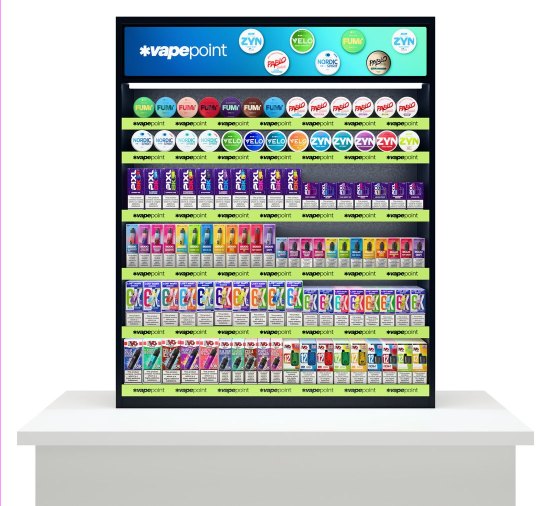
1M Counter Back Wall

W 1000mm × H 1255mm × D 300mm
On the VSL Trade App: 1M Counter Back Wall Display Solution
£1,800Minimum spend a month, ex VAT
£130Rent a month if below the minimum, plus VAT
See planogram
Features
  • Sits behind the till point on the back counter, or on a 1M Drawer Set
  • Digital LCD video screen header, on its own SIM connection
  • LED lighting on every shelf; adjustable shelves
  • Shelf dividers to keep every facing front and full
500mm Back Wall: Front. Select to enlarge

Front

500mm Back Wall

W 500mm × H 2055mm × D 400mm
On the VSL Trade App: 500mm Back Wall Display Solution
£1,500Minimum spend a month, ex VAT
£120Rent a month if below the minimum, plus VAT
See planogram
Features
  • Slim 500mm width: a full category display where space is tight
  • Backlit header
  • LED lighting on every shelf; adjustable shelves
  • A locking glass door available on request
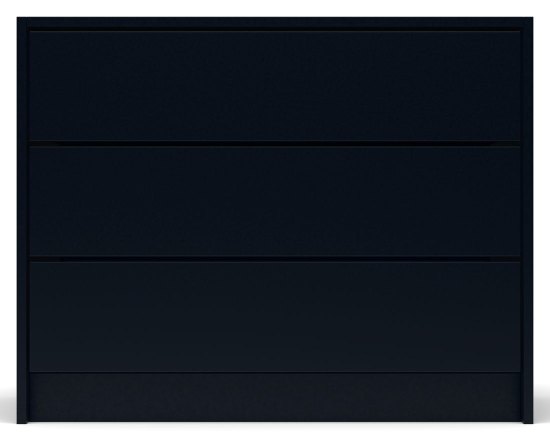
1M Drawer Set: Front. Select to enlarge

Front

1M Drawer Set

W 1000mm × H 800mm × D 400mm
On the VSL Trade App: 1M Drawers Solution (Drawer Set)
£1,250Minimum spend a month, ex VAT
£100Rent a month if below the minimum, plus VAT
Features
  • Three locking storage drawers, to keep tobacco or replenishment stock secure and out of sight
  • Stands on the floor; designed to sit under the 1M Counter Back Wall for a full-height display
  • Available with the Counter Back Wall or on its own
Which unit fits?Use the five standard units, in any mix, to fit the space as closely as you can.Fit the space

How the contract works

  • It is VSL’s unit

    It is VSL’s unit. Survey, delivery and installation are free.

  • The store commits to a minimum monthly spend

    The store commits to a minimum monthly spend for each unit, ex VAT. With more than one unit in a store, every unit’s minimum is added together.

  • To qualify

    To qualify, the store’s average over the last 3 full months before signing must meet the minimum.

  • Once the unit is in

    Once the unit is in, spend is checked on completed tracked months: the first full tracked month on its own, then the average of two, then the rolling 3-month average. Any month it is below the minimum, rent is charged.

  • The contract starts when the BDE co-signs it

    The contract starts when the BDE co-signs it by uploading the install photo. Tracking starts from the photo.

  • The same contract terms for every unit type

    The same contract terms for every unit type. Only the minimum and the rent change. One contract can cover several units in the same store.

  • A unit is not removed for low spend

    A unit is not removed for low spend. The only exception is a store fitted before the August 2026 Unitary audit that stays below its minimum after repeated attempts with its BDE, where the RM decides it will not meet it. Otherwise a unit is only removed if the store closes, is sold and the unit is not kept, the unit is beyond repair and cannot be replaced, or the RM approves a move to another store. A Counter Display Solution XL normally stays with the retailer. One that is unsafe stays switched off and cleared while Shagun confirms with the supplier whether it can stay; do not promise the retailer a collection.

Fit the space

Use the standard units

  1. Bespoke units are not available. Use the five standard units, in any mix, to fit the space as closely as you can.
  2. The 500mm Back Wall only fits next to a 1M or 2M Back Wall.
  3. The 1M Counter Back Wall sits on the back counter, or on a 1M Drawer Set. The 1M Drawer Set stands on the floor.
  4. On the form, choose how many of each unit the store needs (0 to 3 of each).
  5. Measure the wall. If the units you chose leave about 200mm spare, answer “Yes” to “Is there about 200mm of wall left beside the units?”. VSL adds a branded 100mm strip on each side, so the units fill the space. A request with only a 1M Counter Back Wall or a 1M Drawer Set: answer “No”.
  6. Locking glass doors are only for the 2M, 1M and 500mm Back Wall.

Good to know

For a smaller store, offer a smaller unit, if the store’s 3-month average meets the total minimum for every unit it will have. A 500mm Back Wall needs a 1M or 2M Back Wall beside it.

No new requests for the Counter Display Solution XL. Those already in stores stay on contract.

Design may vary.

Next: the Process

Seven steps, always in this order.

Every new store goes through these seven steps. Select a step to open it.

Sell

  1. 1Check the spendBefore visiting
  2. 2Visit and explain the termsWithin 30 days of the interest
  3. 3Approve, then the retailer signsSame day as the visit

Install

  1. 4Submit the form RecordThe day it shows on Contracts Signed
  2. 5Reply on the email thread RecordOnce the install date arrives
  3. 6Attend the installInstall day
  4. 7Upload the photo RecordBefore leaving the store

Steps 4, 5 and 7 are records

Without them, no unit is booked and no store is tracked.

Two cases are different

An extra unit for a store that already has one

  • Submit the form the day the retailer agrees the extra unit (dated on the store’s email thread or by your RM).
  • On the form, choose extra units and give how many units the store has now and the date the retailer agreed the extra units.
  • Upload the install photo to that existing contract.
  • The higher minimum applies from the first full month after the extra unit is fitted.
A verified pre-system installation

The contract was signed before the form and the store’s email thread were in use, Shagun has verified that the unit is already fitted, and there is no photo on the Sales CRM.

  • No form is needed.
  • Visit the store and take a current photo of the whole unit, straight on.
  • Upload it on Contracts Signed with Capture Photo.
  • The next working day, do the tracking check in Step 7.

This is not for a new install whose photo will not upload: email that photo to your RM the same day (Step 7).

Start at Step 1 When something changes
Step 1 of 7

Check the store’s spend before visiting

Customer page, Sales CRM Before visiting the store
  1. Open the store’s customer page in the Sales CRM and go to Shopify Orders.
  2. Check the account’s age. Under 3 full months old: see “Young accounts” below first.
  3. Add up the Sub Total (ex VAT) of every order in the last 3 full months, then divide by 3.
  4. Compare it with the total minimum for all the store’s units: any already fitted plus those being requested. Add up every unit’s minimum (ex VAT, see The units). For example, a 2M Back Wall and a 500mm Back Wall: £4,000 + £1,500 = £5,500 a month.
  5. Check the store’s removal history (ask your RM if you are not sure). If a unit has been removed from this retailer before, ask your RM for a decision on the store’s email thread that day. Do not offer a unit until your RM gives a dated decision there.
  6. At or above the minimum: the store qualifies. Go to Step 2. Below it: see the box below before doing anything else.
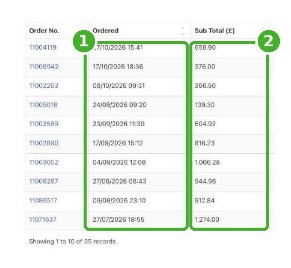
Shopify Orders, with the Ordered date and Sub Total columns marked 1 and 2
1 Ordered date: use the last 3 full months. 2 Sub Total: add these up, then divide by 3.
Worked example (three full months, ex VAT): £1,857.80 + £2,626.73 + £1,401.40 = £5,885.93. Divided by 3 = £1,961.98 a month. This is below £2,000, so the store does not qualify on the numbers.

If the store is below the minimum

You are confident the unit will bring the store up to its minimum (a fact, such as a refit, a new owner or a reopening): carry on with the steps and submit the full request. At the spend check, choose “Not yet” and say why in “Anything else to flag?”. Email your RM the reason too.

A request for a store below its minimum is never booked until your RM has approved it. It only moves if your RM replies “Go ahead” on the store’s email thread. Your RM then owns that decision and the outcome.

Otherwise: submit the form as “Failed spend check”. This closes the interest.

Young accounts and groups

Account under 3 full months old: it needs your RM’s dated “go ahead (new account)” on the store’s email thread first. Then average the full months it has (for example, £4,800 ex VAT over two full months is £2,400 a month): a real £0 trading month counts; a month before it opened does not. With no full trading month yet, the request is held until your RM authorises it or the first full month can be assessed.

At the form’s spend check, choose “Not yet”, because the account does not have 3 full months. In “Anything else to flag?”, say the account is under 3 full months old, give the average of its full months and the date of your RM’s go ahead (new account).

Group account: see the group spend answer.

Step 2 of 7

Visit the store and explain the terms

In store, with the decision maker Within 30 days of the interest

Read this to the retailer, word for word

“It’s VSL’s unit. There’s no rent while you spend the minimum of [£2,000] a month, ex VAT. Once the unit is in, your spend is checked each month: the first full month on its own, then the average of two months, then the 3-month average. Any month it is below the minimum, rent of [£150] a month, plus VAT, is charged. The contract starts when I co-sign it by uploading the install photo.”

Read the figures for the unit the retailer is signing for, from The units (the example is a 1M Back Wall). For more than one unit, add up every unit’s minimum and every unit’s rent.

Then explain install day

  1. The retailer chooses a week for the install: no earlier than the week after you send the form (a form sent after 4pm on Monday counts as the next week’s). The retailer is agreeing that the unit can be fitted on any day that week, Monday to Friday, 9am to 5pm. Do not promise a date.
  2. The supplier sets the date. Moving a date after it has been confirmed adds 5 days.
  3. Cancelling a booked install is charged.

At the visit

Your RM gives you the Space Clearance Checklist, the Merchandising Guidance, the monthly RDP data and VSL’s top-selling brand and product data. Have them with you.

  1. Show the retailer a photo of the unit (see The units) and agree the spot for it.
  2. Go through the Space Clearance Checklist with the retailer.
  3. Take photos of the space, the wider store and the access route. The form asks for them.
  4. Note any existing unit to remove, any step, slope or train station near the entrance, and parking. If the store cannot clear the space itself for a valid reason, record the work needed on the form (“What work is needed to clear the space?”). Removal or clearance work is booked with the install, never arranged on the day.
  5. Agree the categories, brands and products for the unit, using the Merchandising Guidance, the monthly RDP data and VSL’s top-selling brand and product data. VSL Trade products only, with every shelf full.
  6. Get the full name and mobile of the person who will be in store on install day and can sign the delivery note. This may not be the decision maker.
  7. Record the visit date in the Sales CRM visit record.
Step 3 of 7

Approve the interest. The retailer signs.

VSL Trade, Offers, Registered Interest Same day as the visit
  1. In the Sales CRM, go to VSL Trade, Offers, Registered Interest. Find the store and select Approve.
  2. The retailer signs the contract in the VSL Trade App.
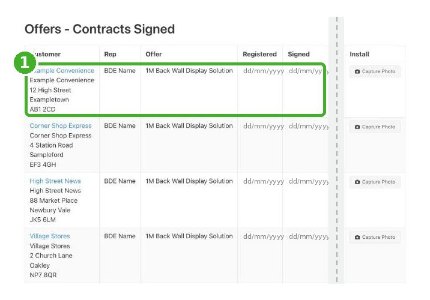
  3. The same day, check the store appears on Contracts Signed, with the correct store and unit.
  4. If the store or unit is wrong, email unitary@vapesupplier.co.uk the same day, copying your RM, with the subject “Unitary install - store name - postcode”. That email starts the store’s email thread.
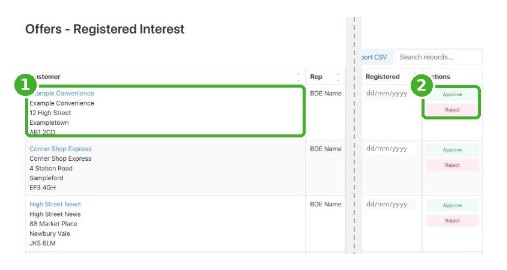
Registered Interest, with the store and the Approve button marked
Registered Interest. 1 Find the store. 2 Select Approve.
Contracts Signed, with the store row marked
Contracts Signed. 1 Check the store and the unit are correct.
Step 4 of 7 · Record

Submit the form, one per store

Unitary Portfolio Request form The day it shows on Contracts Signed
  1. Open the form on your phone, signed in to your VSL Google account.
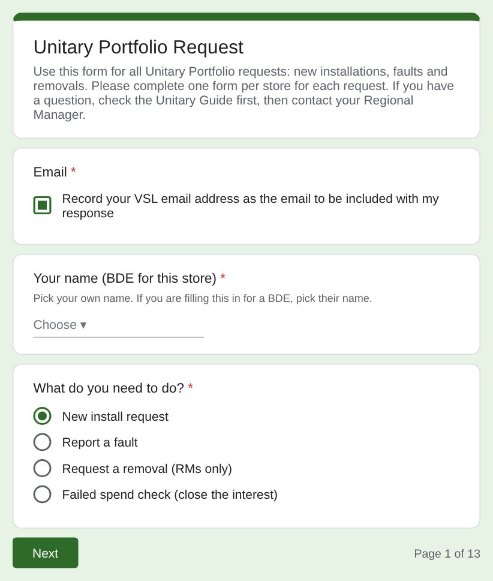
  2. Page 1. Tick to record your email address. Under “Your name (BDE for this store)”, choose your name. Under “What do you need to do?”, select “New install request”.
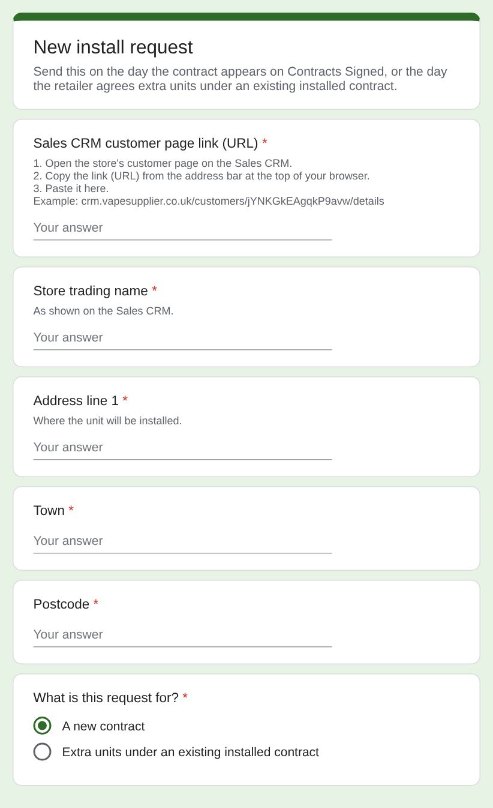
  3. Store. First, the Sales CRM customer page link: open the store’s customer page on the Sales CRM, copy the link (URL) from the address bar and paste it in. Then enter the trading name, address, town and postcode, and choose a new contract or extra units (extra units: give how many units the store has now and the date the retailer agreed the extra units).
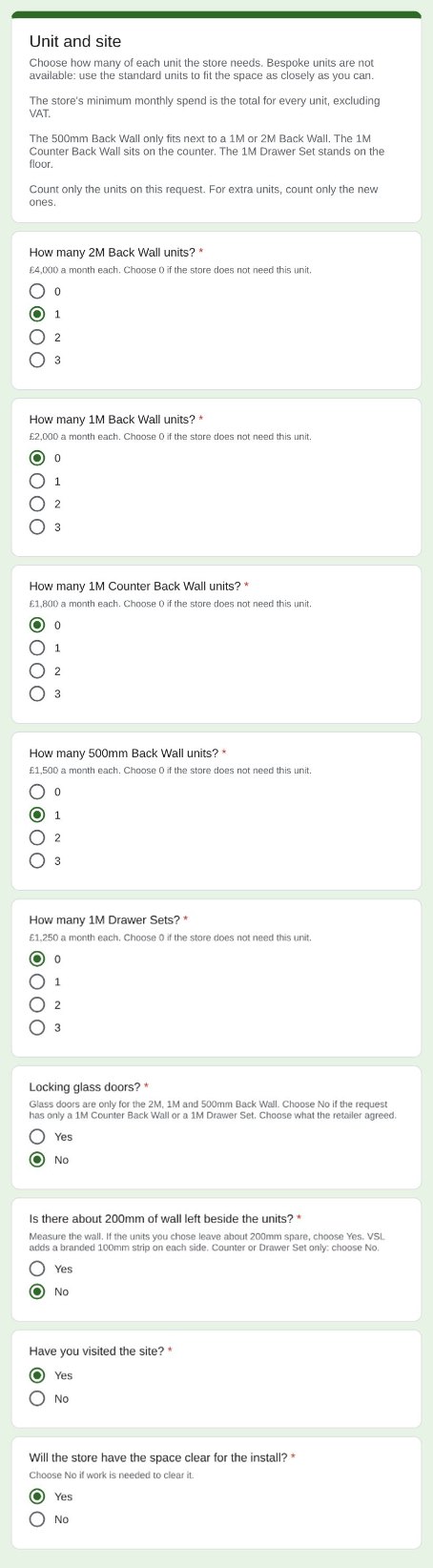
  4. Unit and site. For each of the five units, choose how many this request is for (0 to 3). Choose 0 for a unit it does not need. For extra units, count only the units being added: for example, a store with one 1M Back Wall that adds a 500mm Back Wall is 1 x 500mm Back Wall. Then locking glass doors or not (only for the 2M, 1M and 500mm Back Wall: choose No if the request has only a 1M Counter Back Wall or a 1M Drawer Set), whether about 200mm of wall is left beside the units (see Fit the space), whether you have visited, and whether the space will be clear. Not clear: describe the work needed.
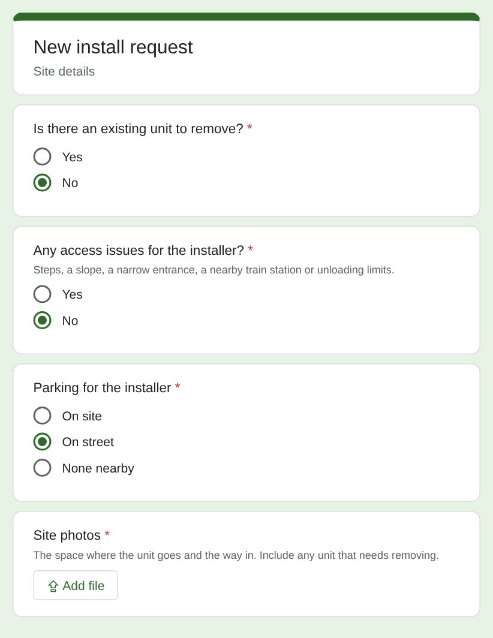
  5. Site details. Any existing unit to remove, any access issues (describe them), parking, and photos of the space and the way in.
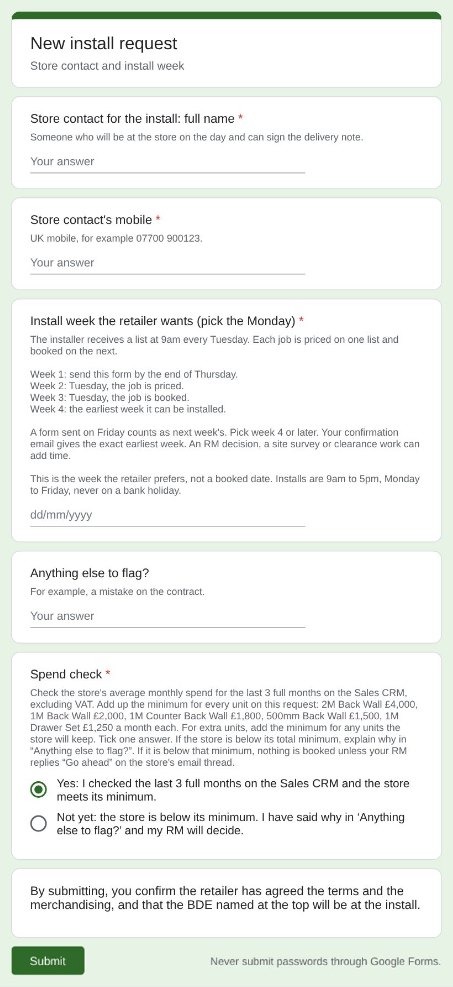
  6. Store contact and install week. The store contact’s full name and mobile, the week the retailer wants (pick a Monday no earlier than the week after you send the form; a form sent after 4pm on Monday counts as the next week’s) and anything else to flag, such as a mistake on the contract.
  7. At the spend check, add up the minimum for every unit on the request (for extra units, add the units the store will keep). Choose “Yes” if the store’s last 3 full months on the Sales CRM meet that total (ex VAT). Below it: choose “Not yet” and say why in “Anything else to flag?”; nothing is booked unless your RM replies “Go ahead” on the store’s email thread. Then submit. Submitting confirms the retailer has agreed the terms and the merchandising, and that you will be at the install.

The form does not ask for the spend: it is checked against the Sales CRM after you submit, and anything below the minimum goes to your RM. If you cannot submit the form (for example, you are on leave), your RM submits it and names the BDE who owns the store. You get an email saying who sent it. Check the details. To correct anything, answer that email.

Open the form
Form page 1: email tick, your name (BDE for this store) and what you need to do
Page 1. Tick to record your email, choose your name, then “New install request”.
Form page: Store, with the customer page link, trading name, address and request type
Store
Form page: Unit and site, with how many of each unit
Unit and site
Form page: Site details
Site details
Form page: Store contact and install week, with the spend check
Store contact and install week

After you submit

Shagun checks it within 2 working days. If the check fails, you are told why on the store’s email thread (see what to do).

Send the form by 4pm on Monday. The job is priced on Tuesday and booked that week. The week after is the earliest week it can be installed. A form sent after 4pm on Monday counts as the next week’s, so the install moves back a week. Your confirmation email gives the exact earliest week. An RM decision, a site survey or clearance work can add time. The date arrives on the store’s email thread. Tell the retailer the date and reply by the cut-off.

No form, no unit.

Step 5 of 7 · Record

Reply on the store’s email thread

The store’s email thread Each reply on time

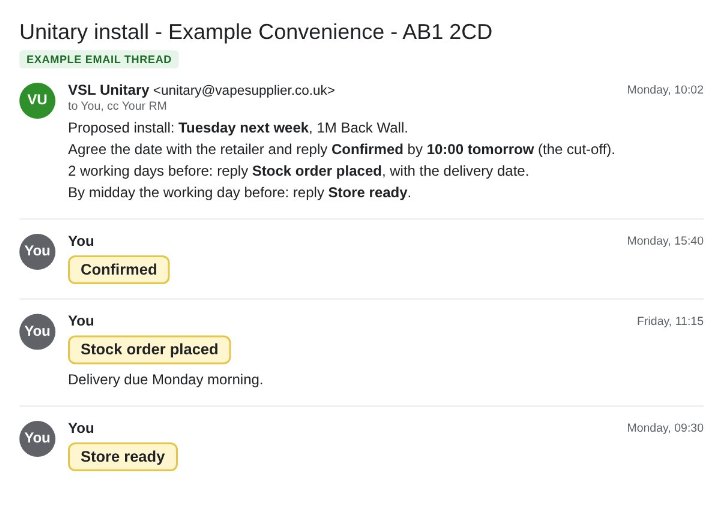
Once the supplier offers a date, Shagun posts it on the store’s email thread from VSL Unitary (“Unitary install - store name - postcode”, to you, with your RM copied), with a reply cut-off. Send three replies on it:

  1. Received and communicated to retailer once you have told the retailer the date and time, by the cut-off in the email. The retailer has already agreed the week on the form, so you do not ask again. You tell them. If there is a problem, tell Shagun on the email thread straight away. For one of your first 3 installs, your RM must also confirm on the email thread, by the same cut-off, who will support you on the day.
  2. Stock order placed 2 working days before the install, with the delivery date. First check the order fills the whole unit, includes the shelf edge strips, and lands in store by midday the working day before. If it cannot, agree an earlier delivery or a new date on the email thread before you reply.
  3. Store ready by midday the working day before. First call the retailer and check all three: the space is clear (or the work to clear it is confirmed on the store’s email thread as on this booking and its purchase order), the stock has landed, and someone who can sign off the unit will be there.
Example email thread with the three replies
An example email thread, with the three replies in order.

If a check fails

Say so on the email thread. Shagun holds or moves the install. When it is put right, say so; Shagun agrees a new date and the replies repeat for that date.

Account on stop

If the account is on stop and the retailer cannot order, reply Account on stop the same day. When the account clears, say so on the email thread; Shagun checks the stock order and rebooks. If it has not cleared within 4 weeks, the install is cancelled.

If it is not on the email thread, it did not happen

If the supplier phones you, record the outcome on the email thread.

Step 6 of 7

Attend the install and check the unit

In store, with the installer Before the installer leaves

1. Check the unit

  • Doors, locks, plug, lights, screen
  • Nothing missing or damaged
  • Shelves level, film off

2. Fill the unit

  • Every shelf full, printed strips on every shelf
  • Nothing on top, no handwritten signs
  • VSL Trade products only, more than one brand and category
3. Take the photos
  • The whole unit, straight on
  • A full shelf, close up
  • The unit in the store
  • The screen or lights on

A 1M Drawer Set on its own

Do only the checks that apply: the drawers open, close and lock, nothing is missing or damaged, and the film is off. There are no shelves, strips or screen to check. Take two photos: the whole unit, straight on, and the unit in the store.

4. Report the result

The same day, reply on the store’s email thread with the result for each unit (fitted, or failed with the reason) and the date.

A full unit, photographed straight on
What a full unit looks like, straight on: every shelf full, printed strips, nothing on top.

If the unit is fitted but faulty or damaged

Photograph it and submit the form as “Report a fault” the same day. Shagun logs it and instructs the supplier within 1 working day.

If the unit cannot be fitted

Give the reason on the email thread that day, with a photo. See When something changes.

Step 7 of 7 · Record

Upload the install photo before leaving

Offers, Contracts Signed Before leaving the store
  1. In the Sales CRM, go to Offers, Contracts Signed and find the store. For an extra unit, find the existing installed contract.
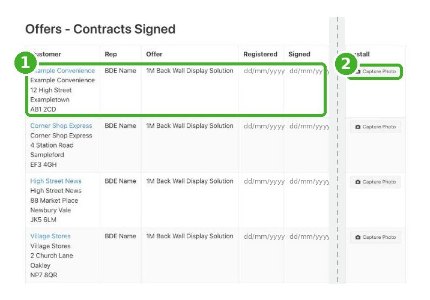
  2. Select Capture Photo and upload a photo of the whole unit, straight on, taken that day.
  3. The next working day, check the store appears on Contracts Installed and the Contracts Report with the correct unit, quantity and minimum. If not, say so on the store’s email thread.
Contracts Signed, with the store and Capture Photo marked
1 Find the store. 2 Select Capture Photo.
Contracts Report, with the Required and Spend columns marked
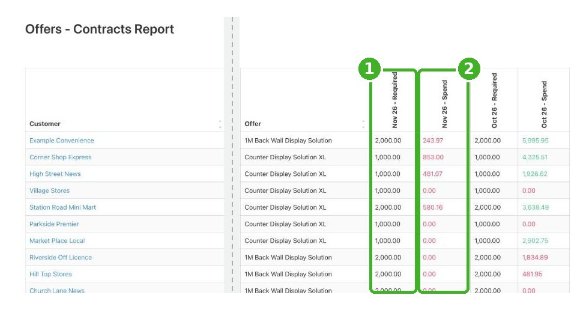
The next working day. 1 Required: the minimum. 2 Spend: green is at or above it, red is short. For a branch paid through an agreed group, the group’s total is checked before the lists are final.

This is the most important step

The contract starts when you co-sign it by uploading the install photo. Without the photo, a new store is not tracked. For an extra unit, the existing units keep tracking, but the extra unit is not added until its photo is uploaded: check the next working day that the quantity has gone up. The higher minimum applies from the first full month after the extra unit is fitted, so check the Required figure goes up from that month.

If the photo will not upload

Email it to your RM the same day. Your RM uploads it.

If your photo fails the check

Correct the unit and, within 1 working day, send the new dated photo and the contract reference on the store’s email thread (or upload it to the installed contract if the Sales CRM lets you).

When something changes.

Each card says how and by when to report it. Most go on the store’s email thread the same day, with the reason and a photo; faults go on the form.

The install fails

Report the result for each unit on the email thread that day. For a unit that was not fitted, give the reason, with a photo. Shagun rebooks it.

If the store caused it (space not cleared, stock not there, or nobody with authority on site) and the same unit fails again for a store reason on a separate visit, your RM cancels that unit. Any other unit, and its booking, stays.

If the supplier caused it, it is rebooked at the supplier’s cost and does not count.

The date moves

Reply on the email thread with the new week the same day. Moving a confirmed date adds 5 days. Confirm the new date by the cut-off Shagun gives.

The store cancels or no longer qualifies before the install

Report it on the store’s email thread the same day, with the step it had reached, the reason and a photo. Your RM confirms it and Shagun cancels the booking. The contract is only removed when no fitted unit or other booking depends on it.

Faulty or damaged

Submit the form as “Report a fault” the same day. Answer “Could the unit be unsafe?” and add photos if you can.

The unit is missing

Ask the retailer what happened. Then send the form the same day: pick “Report a missing unit” and say what the retailer told you.

The unit is unsafe

Ask the retailer to stop using it and keep people clear. Submit the form as “Report a fault” straight away and answer Yes (or Not sure) to “Could the unit be unsafe?”. Both are treated as urgent. Add photos on the store’s email thread when it is safe.

The store is sold or closes

Tell your RM within 5 working days.

The unit can stay only if the store was at its minimum over its last 3 full months under the old owner and the new owner signs their own contract. If the store has fewer than 3 full months under the old owner, your RM refers it to Manish first.

If the unit stays: get the new owner’s signature on their own contract and a current photo of the unit. Within 1 working day of your RM’s decision, send the signed contract reference and the photo on the store’s email thread. There is no booking, so there is no new install request. The old contract ends only once the new owner’s contract is tracking, so the unit is always on a contract.

If not, or the store closes: the unit is collected. Be there for the collection, photograph the unit going out and post the photo on the store’s email thread that day. A Counter Display Solution XL normally stays with the retailer: tell the retailer within 2 working days of your RM approving it. One that is unsafe stays switched off and cleared while Shagun confirms with the supplier whether it can stay; do not promise the retailer a collection.

A missed step

A missed step is chased by your RM within 1 working day. At 2 working days late, it appears on the Friday report.

When a unit is removed

Only if the store closes, is sold and the unit is not kept, the unit is beyond repair and cannot be replaced, or your RM approves a move to another store. A unit is not removed because a store is below its minimum. The only exception is a store fitted before the August 2026 Unitary audit that stays below its minimum after repeated attempts with its BDE, where your RM decides it will not meet it. Only your RM requests a removal. A unit in a store is always on a contract: its contract ends only after the removal is confirmed. When a sold store keeps its unit, the new owner’s contract replaces the old one once it is tracking. Be there for the collection, photograph the unit going out and post the photo on the store’s email thread that day.

Back to the seven steps

How every install is requested, booked and tracked.

The Rollout System has four parts. You use all four.

1. The form

The Unitary Portfolio Request form. One form per store per request, on your phone, signed in to your VSL Google account. If you cannot submit it, your RM submits it and names the BDE who owns the store. Select what you are submitting:

  • New install request

    New install requestThe day the store shows on Contracts Signed. An extra unit: the day the retailer agrees it, saying how many units the store has now. See Step 4.

  • Failed spend check

    Failed spend checkA registered interest that is below the minimum and not going ahead. Store name, postcode and the customer page link. No contract needed. Closes the interest. See Step 1.

  • Report a fault

    Report a faultFaulty, damaged or unsafe, the same day. Photos are optional.

  • Request a removal

    Request a removalRMs only.

Open the form

2. The store’s email thread

One email thread per store, from VSL Unitary: “Unitary install - store name - postcode”, to you, with your RM copied. Everything about the install is recorded on it.

Your three replies: Received and communicated to retailer Stock order placed Store ready. See Step 5.

Replies on the email thread go to the VSL Unitary mailbox, so anyone covering can see the whole history.

Every Monday you get an automatic email from VSL Unitary listing your open installs and what is next. If you answer it, your answer goes to your RM.

3. The Sales CRM

PageWhat you do there
Customer pageCheck the 3-month spend (Shopify Orders)
Registered InterestApprove the interest after the visit
Contracts SignedCheck the store and unit; upload the photo (Capture Photo)
Contracts InstalledCheck the unit appears here the next working day after the photo
Contracts ReportEvery tracked store, its minimum and its spend by month

All under VSL Trade, Offers. Sales CRM changes go through Shagun only: report what is wrong on the store’s email thread.

4. How an install is booked

  1. You submit the formThe day the store shows on Contracts Signed
  2. Shagun checks itWithin 2 working days
  3. The job is pricedOn Tuesday, for a form sent by 4pm on Monday
  4. The job is bookedThe same week, once the price is approved
  5. Installed the week after, at the earliestA form sent after 4pm on Monday counts as the next week’s. An RM decision, a site survey or clearance work can add time. The date arrives on the store’s email thread. Tell the retailer and reply by the cut-off.

Who does what

You, the BDE

The seven steps, and keeping every store at its minimum.

Your RM

Your first contact for anything not in this Guide, by email.

Shagun

Checks every form, books the supplier, runs each store’s email thread and sends the reports.

Aurora

Units, parts and POS.

Do not contact Shagun, Aurora or the supplier directly

A booked install goes on the store’s email thread. Anything else goes to your RM, by email. No WhatsApp groups for unitary.

Your five KPIs.

The same in every region. 80% is the target. Below 70% is the pause.

80%+of your stores at their minimum, every month
100%of install photos uploaded on install day and passed within 1 working day
100%of watch list replies within 2 working days of your RM asking
100%of registered interest visited within 30 days
100%of units merchandised correctly when your RM checks

The pause

On the 1st working day of each month, your stores are checked on their completed tracked months (the 3-month average once a store has three). If too few are at their minimum, you are paused for that month.

Your storesMust be at minimum
1 to 3Every store
4 to 6All but 1
7 to 9All but 2
10All but 3
  • Which stores count

    Which stores count: only stores with at least one full tracked month. A store with none yet is left out. If none of your stores can be assessed, you are not paused.

  • 1 to 3 stores

    1 to 3 stores: the pause applies only once the same store is short at two checks in a row.

  • While paused

    While paused: still submit every form on time. New requests are held and rechecked when the pause ends. Jobs already passed or booked before the 1st working day still go ahead.

  • The pause ends

    The pause ends at a monthly check once you are back at 70% or above, or if none of your stores can be assessed at that check.

Every month

1st working day: the watch list

Every store below its minimum on its completed tracked months (a new store: one month, then the average of two, then three). Give your RM a reason and a catch-up order date for each, within 2 working days of being asked. If a store is short only because an order is awaiting payment, give the order reference and a follow-up date, and tell your RM when payment is confirmed.

3rd and 4th Monday: the still short list

Every store short so far this month. Sell to each one before the month ends.

3rd Thursday: calls

By the end of the third Thursday, check the Contracts Report and call every store still short of its minimum.

Every Friday: the Friday report

Sent to every RM: any step 2 working days or more late (with who owes it), installed stores not tracked correctly, failed installs caused by the store side, every install by status, and a league table.

Contracts Report
The Contracts Report. 1 Required. 2 Spend: green is at or above the minimum, red is short. For a branch paid through an agreed group, a red row alone does not settle it: the group’s total is checked before the rent and pause lists are final.

Rent

Rent (plus VAT) is charged for any month the store is below its minimum, on completed tracked months: the first full tracked month on its own, then the average of two, then the 3-month average. Each month counts against the units and minimum in force that month, so total spend is compared with the sum of those months’ minimums (for example, £2,000 + £2,000 + £4,000 after a second unit = £8,000 over three months, ex VAT). After a unit is removed or an XL contract ends, the old minimum still applies in the month of the end date; the lower minimum applies from the first full month after it. Units are not removed for low spend: the aim is to win the spend back. The only exception is a store fitted before the August 2026 Unitary audit, where your RM decides it will not meet its minimum after repeated attempts.

Questions and answers.

Cannot find it? Ask a question

Getting started

Where do I find the form?

Use the Open the form button in Step 4, or in the menu. Open it on your phone, signed in to your VSL Google account.

Who does what?
  • You (BDE): the seven steps in this Guide, and keeping every store at its minimum.
  • Your RM: your first contact for anything not in this Guide, by email.
  • Shagun: checks every form, books the supplier, runs each store’s email thread and sends the lists and the Friday report.
  • Aurora: units, parts and POS.
  • Manish: leads the programme.

Do not contact Shagun, Aurora or the supplier directly.

Which steps are mine?

All seven steps in the Process: check the spend, visit, approve, submit the form, reply on the email thread, attend the install and upload the photo. After that, keep every store at its minimum every month.

Is there a Unitary App?

The Unitary App is not live yet. Until it is, use the form, the store’s email thread and your RM. You will be told when it is live.

Does this process cover MSO stores?

No. This process covers independent and symbol stores. MSO stores are handled separately.

Before the retailer signs

Does the store qualify for a unit?

It qualifies when its average monthly spend over the last 3 full months, ex VAT, is at or above the minimum for all its units: any already fitted plus those being requested. Check it before visiting (Step 1). Below the minimum, see “The store is below the minimum. Can I still request a unit?”. An account under 3 full months old needs your RM’s dated “go ahead (new account)” first.

How do I check the spend?
  1. Open the store’s customer page in the Sales CRM and go to Shopify Orders.
  2. Add up the Sub Total (ex VAT) of every order in the last 3 full months.
  3. Divide by 3.
  4. Compare it with the minimum for all the store’s units: any already fitted plus those being requested (two units: both minimums added). At or above it, the store qualifies.

An account under 3 full months old works differently: see the young account answer. Also check the store’s removal history. See Step 1.

Is the minimum spend ex VAT?

Yes. Every minimum and spend figure is ex VAT. Retailers often quote their spend including VAT, so always check the customer page in the Sales CRM. Rent is charged plus VAT.

What is a Failed spend check?

An option on the form. Use it when a store that registered interest is below the minimum and you are not putting it forward as an exception. It needs the store name, postcode and the store’s customer page link from the Sales CRM. It closes the interest.

The store is below the minimum. Can I still request a unit?

Only if you are confident the unit will bring the store up to its minimum, for a factual reason such as a refit, a new owner or a reopening. Approve, then submit the full request: at the spend check choose “Not yet” and say why in “Anything else to flag?”. Email your RM the reason too.

A request for a store below its minimum is never booked until your RM has approved it. It only moves if your RM replies “Go ahead” on the store’s email thread. Your RM then owns that decision and the outcome. If your RM replies “Remove”: for a new store, the contract comes off and you re-qualify the store once its 3-month average meets the minimum; for an extra unit, only the addition comes off and the existing unit and its minimum stay tracked.

The account is under 3 months old. Does it qualify?

Only with your RM’s dated “go ahead (new account)” on the store’s email thread. This is separate from any below-minimum go ahead.

With it, average the full months the account has: a real £0 trading month counts; a month before it opened does not. For example, two full months totalling £4,800 ex VAT is £4,800 divided by 2: £2,400 a month. The form does not ask for the spend or the account’s age: both are checked against the Sales CRM after you submit.

No full trading month yet: the request is held until your RM authorises it on the store’s email thread or the first full month can be assessed.

The store is part of a group. Does the group’s spend count?

For the install request: only if your RM records a dated “group spend agreed”, with the paying branch and the branches covered, on the request or the store’s email thread before Shagun’s check.

The group’s total must cover the minimum of every branch already fitted, every branch approved but not yet fitted, and the units on this request, each counted once. A shortfall goes to your RM as a below-minimum decision. “It will grow” does not count.

Each month: a new or changed group arrangement goes through your RM by the end of the first working day of the month. Then, for rent and the pause, an agreed group counts as at its minimum when the group’s total covers every branch with a unit. Shagun checks this before the lists are final, so a red row on the Contracts Report does not settle it on its own.

A unit was removed from this retailer before.

Ask your RM for a decision on the store’s email thread the day you find the removal. Do not offer a unit until your RM gives a dated decision there. Your RM has 2 working days to reply.

Can I offer a smaller unit?

Yes, if the store’s 3-month average meets the total minimum for every unit it will have (ex VAT): 1M Counter Back Wall £1,800, 1M Drawer Set £1,250 a month. The 500mm Back Wall (£1,500) only fits next to a 1M or 2M Back Wall, so add that unit’s minimum too. See The units.

A store wants two units or more.

Every unit’s minimum is added together. For example, two 1M Back Walls require £4,000 a month (ex VAT) on the 3-month average, and a 2M Back Wall with a 500mm Back Wall requires £5,500. On the form, choose how many of each unit the store needs.

A store with a unit wants another one.

Submit a new form for the extra unit the day the retailer agrees it (dated on the store’s email thread or by your RM). On the form, choose extra units and give how many units the store has now and the date the retailer agreed the extra units. In “Unit and site”, count only the new units, not the units already in the store. The store is then judged on all its units together, with the minimums added. The higher minimum applies from the first full month after the extra unit is fitted. Upload its install photo to the existing contract.

Can the store have a bespoke unit?

No. Bespoke units are not available. Use the five standard units, in any mix, to fit the space as closely as you can. See Fit the space.

Side strips: there is a gap beside the units.

Measure the wall. If the units you chose leave about 200mm spare, answer “Yes” on the form to “Is there about 200mm of wall left beside the units?”. VSL adds a branded 100mm strip on each side, so the units fill the space. For any other gap, use the standard units to fit the space as closely as you can. A request with only a 1M Counter Back Wall or a 1M Drawer Set: answer “No”.

Which units can have doors?

Locking glass doors are only for the 2M, 1M and 500mm Back Wall, on request. The 1M Counter Back Wall and the 1M Drawer Set have no glass doors. On the form, choose “No” to “Locking glass doors?” if the request has only a 1M Counter Back Wall or a 1M Drawer Set.

Which units can go together?
  • The 500mm Back Wall only fits next to a 1M or 2M Back Wall.
  • The 1M Counter Back Wall sits on the back counter, or on a 1M Drawer Set.
  • The 1M Drawer Set stands on the floor.

Choose how many of each unit the store needs on the form.

A retailer registered interest. How long do I have?

Visit the decision maker in store within 30 days. Check Registered Interest yourself: new interest is not flagged to you. Interest older than 60 days is cleared on the 1st working day of each month.

What do I tell the retailer before they sign?

Read the terms word for word (see Step 2), then explain install day: the retailer chooses a week, the supplier sets the date, moving a confirmed date adds 5 days, and cancelling a booked install is charged.

When does the contract start?

When you co-sign it by uploading the install photo on Contracts Signed (Capture Photo). That is also when the store starts being tracked against its minimum.

The store has an old unit to remove, or difficult access.

Record it on the form: any existing unit to remove, any step, slope or train station near the entrance, and parking. Photograph the space, the wider store and the access route.

The form

What does the form ask for?
  • Page 1: a tick to record your email address, your name (BDE for this store), and what you need to do.
  • Store: the store’s customer page link from the Sales CRM, then the trading name, address, town and postcode, and whether it is a new contract or extra units (extra units: how many units the store has now and the date the retailer agreed the extra units).
  • Unit and site: how many of each unit (2M Back Wall, 1M Back Wall, 1M Counter Back Wall, 500mm Back Wall, 1M Drawer Set; 0 to 3 of each), locking glass doors, whether about 200mm of wall is left beside the units, whether you have visited, and whether the space will be clear (if not, the work needed).
  • Site details: any existing unit to remove, access issues, parking, and photos of the space and the way in.
  • Store contact and install week: the full name and mobile of the person who will be in store on the day, the week the retailer wants (pick a Monday no earlier than the week after you send the form; a form sent after 4pm on Monday counts as the next week’s), and anything else to flag.
  • Spend check: “Yes” if the store’s last 3 full months on the Sales CRM meet the total minimum for every unit on the request plus any units the store already has and will keep (ex VAT), or “Not yet” if it is below, with the reason in “Anything else to flag?”. The form does not ask for the spend figures.

Before submitting, check that the address on the signed contract is the install address.

Where is the CRM number?

The form asks for the store’s customer page link instead. Open the store’s customer page on the Sales CRM (the page where you check its spend), copy the web address from the address bar and paste it into the form. For example: crm.vapesupplier.co.uk/customers/jYNKGkEAgqkP9avw/details. The customer ID is the code after /customers/. It is not printed on the page, and the system takes it from the link.

Can I submit the form before the contract is signed?

A new install request: no. Submit it the day the store appears on Contracts Signed. An extra unit: the day the retailer agrees it, saying how many units the store has now. A Failed spend check is different: it closes a registered interest that is not going ahead, so no contract is needed.

If you cannot submit a form (for example, you are on leave), your RM submits it and names the BDE who owns the store.

I forgot to submit the form.

Submit it today. From the day after signing, you get an email on the store’s email thread asking for it, every 2 working days, 3 at most. Then your RM follows it up. No form, no unit.

The form will not upload my photos.
  1. Check you are signed in with your VSL Google account.
  2. Check your signal and try again, a few photos at a time.
  3. If it still fails the same day, email the photos, store name and postcode to your RM. Your RM submits the form for you.
  4. You get an email saying who sent it. Check the details. To correct anything, answer that email.
Does my RM approve my request?

No. Shagun checks every request within 2 working days against the signed contract, the store’s spend on the Sales CRM, its removal history, the account’s age and whether you are paused. Your RM is only involved for a below-minimum store, a young account, a group, a previous removal, or if the figures look wrong.

Shagun’s check failed. What do I do?

You are told why on the store’s email thread. What happens next depends on the reason:

  • Wrong contract: get the right one signed within 2 working days, or the wrong one comes off.
  • Below the minimum: it stops with your RM, who replies “Go ahead” or “Remove” on the store’s email thread.
  • You are paused: nothing to do. It is held and rechecked when your pause lifts.

Install dates

Where do I find my install date?

On the store’s email thread: “Unitary install - store name - postcode”, from VSL Unitary, sent to you with your RM copied. No email thread yet means no date yet. Do not contact Shagun to ask.

How quickly must I confirm an install date?

By the cut-off Shagun gives in the email. Give the retailer the date and time, then reply “Received and communicated to retailer”. The retailer has already agreed the week on the form, so you do not ask again. If there is a problem, say so on the email thread straight away. For one of your first 3 installs, your RM must also confirm by the same cut-off who will support you.

The retailer wants an exact install date.

Do not promise one. Ask for the week they would like. The supplier sets the date inside that week, and you tell the retailer.

The retailer wants to move the install date.

Reply on the store’s email thread with the new week the same day. Moving a date after it has been confirmed adds 5 days. Confirm the new date by the cut-off Shagun gives.

When are installs booked?

The installation supplier gets a list every Tuesday, in the order contracts were signed, once Shagun’s check has passed. A form sent by 4pm on Monday is priced on Tuesday and booked that week. The week after is the earliest week it can be installed. A form sent after 4pm on Monday counts as the next week’s. An RM decision, a site survey or clearance work can add time. Your date arrives on the store’s email thread. Tell the retailer and reply by the cut-off.

How long from form to install?
  1. Monday: send the form by 4pm.
  2. Tuesday: the job is priced.
  3. The same week: once the price is approved, the job is booked.
  4. The week after: the earliest week it can be installed, aiming for the week the retailer chose.

A form sent after 4pm on Monday counts as the next week’s, so the install moves back a week. Your confirmation email gives the exact earliest week. An RM decision, a site survey or clearance work can add time.

A site survey has been booked.

Treat the survey date as a possible install date: if the site passes, the unit is fitted the same day. So tell the retailer the date and reply by the cut-off, place the stock order and reply “Store ready” against the survey date. If it is one of your first 3 installs, your RM must also confirm by the same cut-off who will support you.

If the site fails, agree clearing the space with the retailer and reply “Site cleared” on the email thread within 5 working days. If it cannot be cleared, report it on the email thread for your RM to decide.

I cannot attend a booked install.

Email your RM today and reply on the store’s email thread. Your RM arranges cover. If nobody can attend, the date is moved; moving a confirmed date adds 5 days.

What hours do installs take place?

Monday to Friday, 9am to 5pm, never on a bank holiday. The supplier sets the date.

Your working hours are also 9am to 5pm, Monday to Friday. A working day is Monday to Friday, not a bank holiday in England and Wales. If you work in Scotland, Scottish bank holidays apply instead.

Stock order and store ready

What do the three replies mean?
  • Received and communicated to retailer You have told the retailer the date and time. By the cut-off in the email.
  • Stock order placed The retailer has ordered enough stock to fill the whole unit, plus the shelf edge strips, landing in store by midday the working day before. Send it 2 working days before the install, with the delivery date.
  • Store ready You have called the retailer: the space is clear (or the work to clear it is confirmed on the store’s email thread as on this booking and its purchase order), the stock has landed, and someone who can sign off the unit will be there. By midday the working day before.

If the date moves, all three replies are sent again for the new date.

The retailer has not placed the stock order.

The stock order is due 2 working days before the install: stock to fill the whole unit, plus the shelf edge strips, landing by midday the working day before the install.

If it is not placed, do not reply “Stock order placed”. Say so on the email thread; the install is held. A unit is never installed empty. Once the order is placed, reply “Stock order placed” with the delivery date. Shagun agrees a new date and the replies repeat for it.

The stock will arrive too late.

Agree an earlier delivery, or a new install date through the email thread, before you reply “Stock order placed”. The stock must be in store by midday the working day before.

The account is on stop.

Reply “Account on stop” on the store’s email thread the same day. The install is held. When the account clears, say so on the email thread; Shagun checks the stock order is placed, then rebooks. If it has not cleared within 4 weeks, the install is cancelled.

What goes in the unit?

Enough stock to fill the whole unit, with printed shelf edge strips. Every shelf full, nothing on top, no handwritten signs, VSL Trade products only, and more than one brand and category.

Install day and the photo

What do I do on install day?
  1. Be in store for the install. Someone from the store with authority must be on site too.
  2. Check the unit before the installer leaves.
  3. Fill the unit.
  4. Take the photos.
  5. Report the result for each unit on the email thread.
  6. Upload the whole-unit photo on Contracts Signed before you leave.

See Step 6 and Step 7.

Which photos do I take?
  • The whole unit, straight on
  • A full shelf, close up
  • The unit in the store
  • The screen or lights on

A 1M Drawer Set on its own: two photos, the whole unit straight on and the unit in the store.

What makes an install photo pass?

The whole unit in shot, every shelf full, printed strips, nothing on top, more than one brand and category, VSL Trade products only, and the unit fitted properly. Taken in store on the day. Never a screenshot or an old photo.

A 1M Drawer Set on its own has no shelves or strips: the whole unit in shot, fitted properly, drawers closed.

My photo failed the check.

Correct the unit and, within 1 working day, send the new dated photo and the contract reference on the store’s email thread (or upload it to the installed contract if the Sales CRM lets you).

The photo will not upload.

Email it to your RM the same day. Your RM uploads it. Until it is uploaded, a new store is not tracked; for an extra unit, the existing units keep tracking but the extra unit is not added.

The store is not showing correctly on the Contracts Report.

The working day after the photo, check Contracts Installed and the Contracts Report for the right unit, quantity and minimum. If anything is wrong, say so on the store’s email thread. Shagun requests the correction.

The installer did not arrive, or could not fit the unit.

Reply on the store’s email thread the same day with what happened and a photo. If the supplier caused it, it is rebooked at the supplier’s cost and does not count against you or the store. Do not contact the supplier.

When do I go back after the install?

Within 2 weeks: refill any gaps and help the retailer reorder. Then check and correct the unit on every visit.

I am new. Will I have support on my first installs?

Yes. For your first 3 installs, your RM arranges support in store and confirms it on the email thread.

After the install

How do I report a fault?

Submit the form and select “Report a fault” the same day. Answer “Could the unit be unsafe?” (Yes, No or Not sure), paste the store’s customer page link, and say which unit is faulty and what is wrong. Photos are optional: add them if you can.

A fault found on install day: Shagun logs it and instructs the supplier within 1 working day. Any later fault: within 1 working day of the repair being approved and the purchase order ready.

The unit is unsafe.

Ask the retailer to stop using it and keep people clear. Submit the form as “Report a fault” straight away and answer Yes (or Not sure) to “Could the unit be unsafe?”. Both are treated as urgent. Add photos on the store’s email thread when it is safe.

The unit is missing.

Ask the retailer what happened. Then send the form the same day: pick “Report a missing unit” and say what the retailer told you.

The store has been sold or has closed.

Tell your RM within 5 working days.

The unit can stay only if the store was at its minimum over its last 3 full months under the old owner and the new owner signs their own contract. If the store has fewer than 3 full months under the old owner, your RM refers it to Manish first.

If the unit stays (a retained-unit transfer): get the new owner’s signature on their own contract and a current photo of the unit. Within 1 working day of your RM’s decision, send the signed contract reference and the photo on the store’s email thread. There is no booking, so there is no new install request. The old contract ends only once the new owner’s contract is tracking, so the unit is always on a contract.

Otherwise, or if the store closes, the unit is collected: be there, photograph it going out and post the photo on the store’s email thread that day. A Counter Display Solution XL normally stays with the retailer: tell the retailer within 2 working days of your RM approving it. One that is unsafe stays switched off and cleared while Shagun confirms with the supplier whether it can stay; do not promise the retailer a collection.

The retailer wants the unit removed.

Do not agree anything in store. Email your RM the same day with the store and the reason. Only your RM can request a removal. A unit is only removed if the store closes, is sold and the unit is not kept, the unit is beyond repair and cannot be replaced, or your RM approves a move to another store. A unit can also be removed from a store fitted before the August 2026 Unitary audit that stays below its minimum after repeated attempts with you, if your RM decides it will not meet it. The contract stays while the unit is in the store. It ends only after the removal is confirmed. A Counter Display Solution XL normally stays with the retailer. One that is unsafe stays switched off and cleared while Shagun confirms with the supplier whether it can stay; do not promise the retailer a collection.

Can a unit be removed because the store is below its minimum?

No. Units are not removed for low spend. Rent is charged for every month the store is short, and the aim is to win the spend back.

The only exception is a store fitted before the August 2026 Unitary audit that stays below its minimum after repeated attempts with its BDE. Your RM decides whether it will meet its minimum.

Can a unit move to another store?

Yes, if the new store qualifies and signs its own contract. Your RM approves the move.

I have taken over a store from another BDE.

Check the unit is there, merchandise it and take a new photo within 30 days. If the unit is not there, report it as missing.

A store needs more POS or shelf edge strips.

Email your RM with what is needed and for which store.

Spend, rent and the pause

What happens when a store is below its minimum?

It appears on the watch list on the 1st working day (judged on its completed tracked months). Give your RM a reason and a catch-up order date within 2 working days of being asked. Rent is charged for that month.

How much is the rent?

Rent is charged for every month the store’s tracked spend is below its minimum, on completed tracked months: the first full tracked month on its own, then the average of two, then the rolling 3-month average.

Each month counts against the units and minimum in force that month, so total spend is compared with the sum of those months’ minimums (for example, £2,000 + £2,000 + £4,000 after a second unit = £8,000 over three months, ex VAT). After a unit is removed or an XL contract ends, the old minimum still applies in the month of the end date; the lower minimum applies from the first full month after it.

New units, per month, plus VAT: 2M Back Wall £250, 1M Back Wall £150, 1M Counter Back Wall £130, 500mm Back Wall £120, 1M Drawer Set £100. Older units pay the rent on their contract: 1M MDF back wall £40, Counter Display Solution XL £20, plus VAT. If the retailer disputes it, email your RM.

What is the still short list?

On the 3rd and 4th Monday of the month, every store below its minimum so far that month. Sell to each one before the month ends. By the end of the third Thursday, call every store still short.

What is the Friday report?

A weekly report from the VSL Unitary mailbox to every RM, in five parts: any step 2 working days or more late (with who owes it); installed stores not tracked correctly; failed installs caused by the store side (space not cleared, stock not landed, or nobody with authority on site), as opposed to the supplier; every install by status; and a league table.

What happens if I am late on a step?

Your RM chases you within 1 working day. At 2 working days late, it appears on the Friday report.

What is the pause?

On the 1st working day of each month, your stores are checked on their completed tracked months (the 3-month average once a store has three). If fewer than 70% of the stores that can be assessed are at their minimum, you are paused for that month: new requests are held. Jobs already passed or booked before that day still go ahead. With 1 to 3 stores, the pause applies only once the same store is short at two checks in a row.

A store with no full tracked month yet is left out. If none of your stores can be assessed, you are not paused.

I have 1 to 3 stores. Can I be paused?

Yes. Every store must be at its minimum. However, the pause applies only once the same store is short at two checks in a row.

I am paused. What do I do?

Keep submitting every form on time: new requests are held and rechecked when the pause ends. Your RM discusses it with you within 2 working days. The pause ends at a monthly check once you are back at 70% or above, or if none of your stores can be assessed at that check.

Rules and contacts

How do I sign in to the Guide?

Open unitary.vslcommand.com. Type your VSL email address. A login code is emailed to you: type it in to open the Guide.

Add the Guide to your phone's home screen so it is one tap away.

How do I give feedback on the Guide?

Open Feedback in the menu. It goes to the VSL Unitary Team.

Use it for gaps, scenarios and questions that the Guide and the form do not already cover. Keep it constructive: say what is missing and what would help. Search the Guide or use Ask first.

You can add up to 3 screenshots if they help show what you mean.

Feedback is not answered one by one. The team uses it to improve the Guide.

For a store that needs action, contact your RM.

Who do I ask?

This Guide first. Then your RM, by email, so there is a record. Anything about a booked install goes on the store’s email thread.

Can I contact Shagun, Aurora or the supplier?

No. Install dates and changes go on the store’s email thread. Anything else goes to your RM by email. The one exception: a wrong contract on Contracts Signed is emailed to unitary@vapesupplier.co.uk, copying your RM (see Step 3).

Is there a WhatsApp group?

No. There are no WhatsApp groups for unitary, and nothing is agreed by WhatsApp or phone. If it is not on the store’s email thread, it did not happen.

Can I request a Sales CRM change?

Not directly. Report what is wrong on the store’s email thread. Sales CRM changes are requested by Shagun only, so every change can be traced.

I cannot see the Contracts Report or another Sales CRM page.

Email your RM the same day.

The retailer wants something this Guide does not cover.

Do not agree it in store. Email your RM with the store name, postcode and what the retailer wants.

How do I give feedback on the process?

Gaps, scenarios and questions that the Guide, the form and the process do not cover: open Feedback in the menu. It goes to the VSL Unitary Team.

Anything about a store or your own work: talk to your RM.

No questions match. Try one word, or ask a question.

Something missing? Send feedback

Search every step, unit and answer.

Ask a question

Ask a question about unitary.

Type it in your own words. You will get the answer from this Guide, with a link to the full step.

Tell us what is missing.

Your feedback goes to the VSL Unitary Team.

Use it for gaps, scenarios and questions that the Guide and the form do not already cover.

Before you send

1. Search the Guide or use Ask first.

2. Keep it constructive: say what is missing and what would help.

3. Feedback is not answered one by one. The team uses it to improve the Guide.

4. For a store that needs action, contact your RM.

Up to 3 images. Do not include retailer bank details or anyone's personal details.

    Your name and email are added from your sign-in.

    Thank you. Your feedback has gone to the VSL Unitary Team.

    It will be used to improve the Guide. You will not get a reply. For a store that needs action, contact your RM.

    Send more feedback

    Planograms.

    The recommended layout for each unit, by region. Updated every month.